
ddraw: User Manual

About ddraw:

ddraw: is an online drawing tool, which can be used as an applet inside webpage or as stand-alone application. The application is written in Java programming language.

Main application features:

  • Layers
  • Layer opacity
  • Original brushes
  • Basic image filters
  • Image export (PNG)
  • Project save/load

Main window

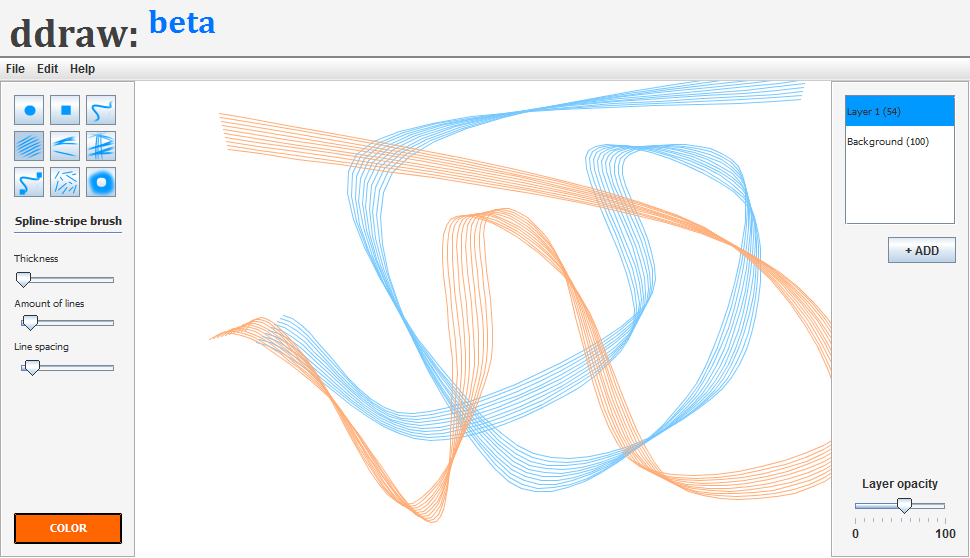
Main window constists of 4 major parts:

  • Tool panel (left)
  • Layer panel (right)
  • Main menu (top)
  • Canvas (center)

Tool panel

Brush selection

Each toggle button represents one original tool. Most of them are brushes, but some of them have other purpose. Such as eraser. User can choose any of them by clicking on it. Current tool's name is displayed below.

Brush adjustment

This area contains variable amount of sliders, which can have different functions according to the current tool. You can adjust attributes such as thickness of line, density of lines or spacing between lines when using multi-line tool.

Color selection

Clicking this rectangle opens a new window allowing user to select drawing color. User can choose from few different methods of color-choosing. Available methods: Color swatches, HSB selection, RGB selection.
Layer panel

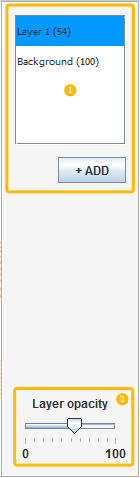
Layer selection, add layer button

This box displays all user-defined layers in right order. Each layer has indicator of opacity(in the brackets). User can select desired layer by clicking on its name. The "+ ADD" button creates new layer with 100% opacity and puts it on top of the stack.

Layer opacity setting

This slider is used to define opacity of current layer. User can set opacity of all layers including the "Background layer". When "Background layer" is transparent, user can notice chess board across the image. This indicates that the image is without background. User can export images without(or transparent) background to PNG format.

Main menu

File

File menu allows user to create new project(Ctrl+N), load existing project(Ctrl+O), save project(Ctrl+S) and export(Ctrl+E) current canvas state into PNG file.

Edit

Edit menu offers set of basic image filters which can be applied on selected layer. (Desaturation, Invertion, Gaussian blur,...)

Help

Help menu offers quick jump to this page(F1) and info about current application version etc.

Canvas

Canvas is main drawing area and it represents final image. User can draw into this area by dragging or clicking mouse button. Mouse cursor is often tool-specific when it is over the Canvas.

Basic set of tools

Round brush

Simple round-shaped brush. Drag to draw.

Square brush

Simple square-shaped brush. Drag to draw.

Spline brush

Drag mouse to create smooth spline curve. This brush starts drawing after few anchor points are planted.

Spline stripe brush

Drag mouse to create curved "belt" created from many spline curves. This brush starts drawing after few anchor points are planted.

Multi-spline brush

Drag mouse to create set of spline curves with just a little different anchor points. This brush starts drawing after few anchor points are planted.

Crazy multi-spline brush

Drag mouse to create set of spline curves with random dislocation of anchor points. This brush starts drawing after few anchor points are planted.

Click-spline brush

Click to plant anchor point for spline curve. This brush starts drawing after few anchor points are planted.

Nails

Drag to draw random lines of random length on canvas.

Round Eraser

Simple round-shaped eraser. Erase by dragging.